

Intelligent Reviews
+Intelligent Reviews Introduction
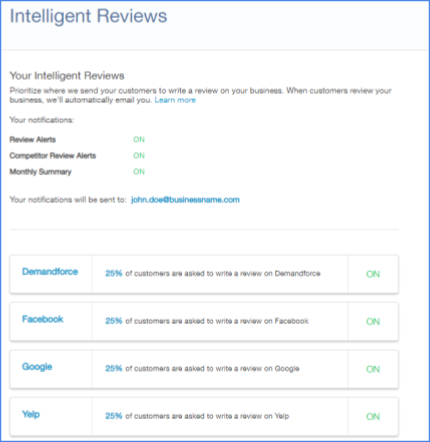
Intelligent Reviews allows you to focus your online reputation where it matters most. With flexible options like review site distribution & turning on and off review sites, you can prioritize where your customers are sent to share their experience when requested to leave feedback.
+Configure Intelligent Reviews
In order to set up Intelligent Reviews correctly, you must decide on a percentage to allocate a review site, and you must have collected the listing site URL.
** instructions are below in the “Find a Listing URL” section of this article **
+Review Allocations
In this tab, you are able to:
- Distribute the percentage in which you would like patients to receive review requests for each website
Use the following instructions to insert the URLs in Intelligent Review Settings and configure their percentages.
+Review Allocations
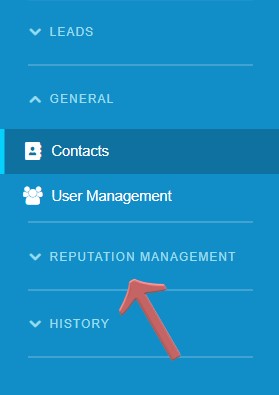
- Click into Reputation Management on the left-hand menu
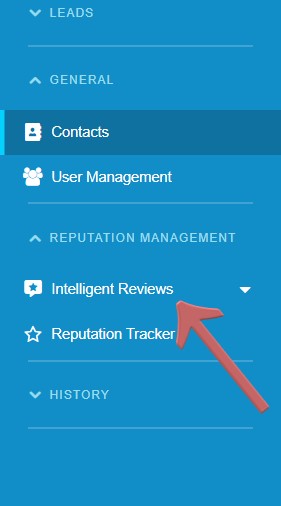
- Click Intelligent Reviews
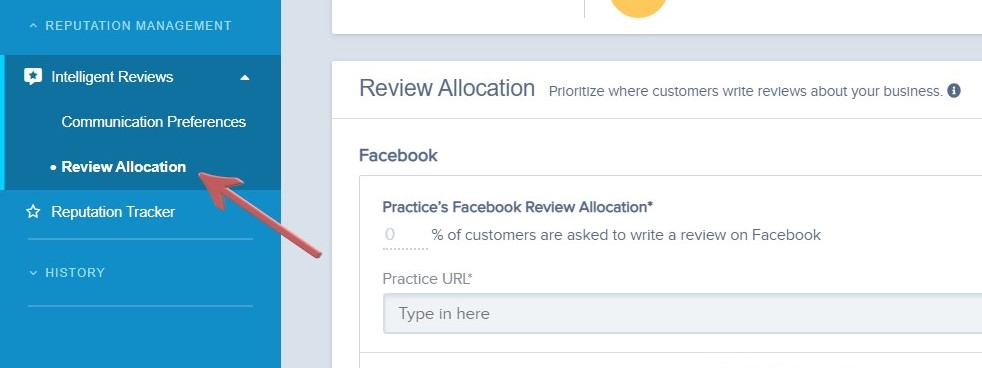
- Make sure you are in the Review Allocation Tab
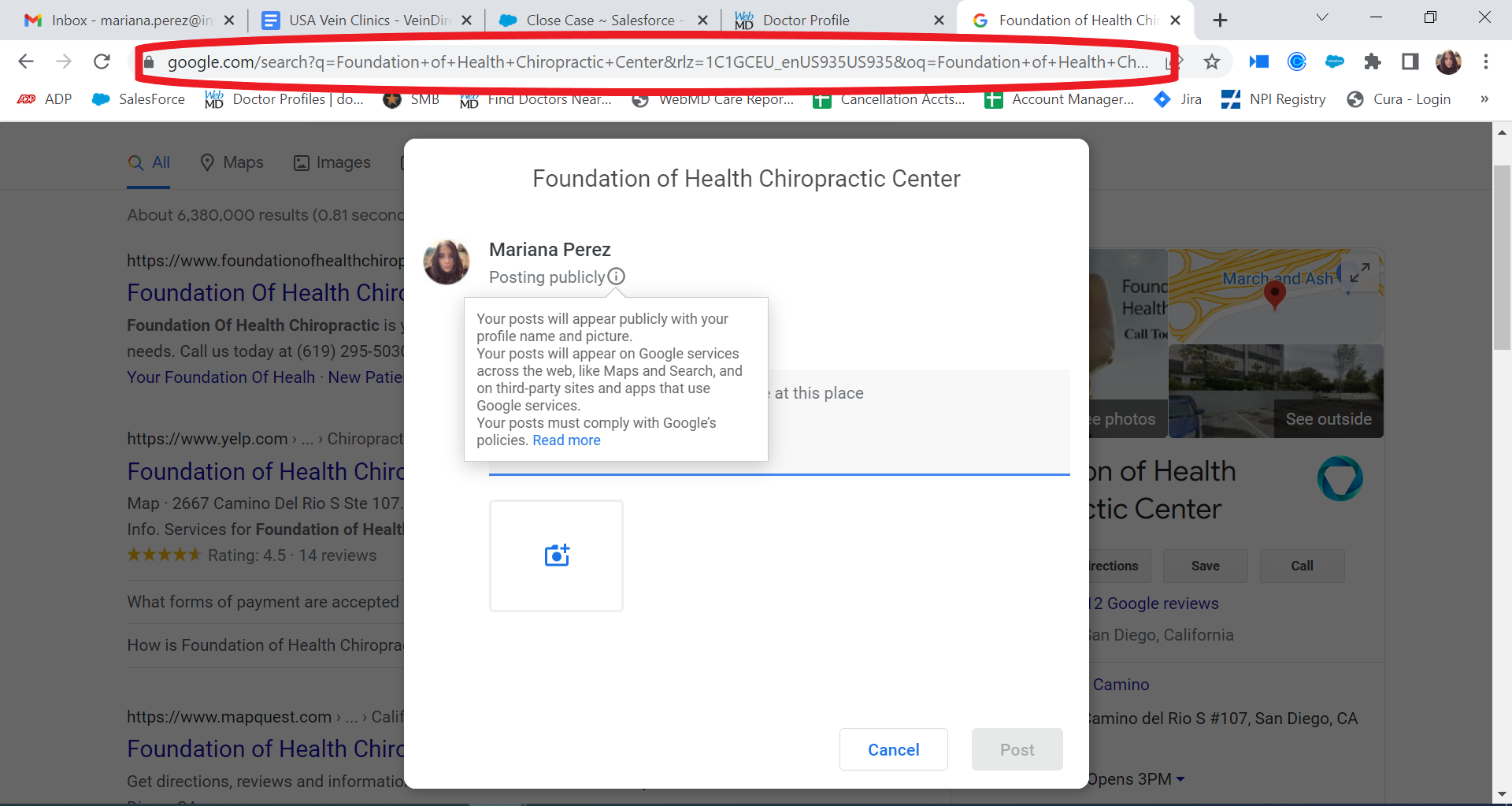
- Locate your review link on the web for each site (Yelp, Google, Facebook) instructions included below.
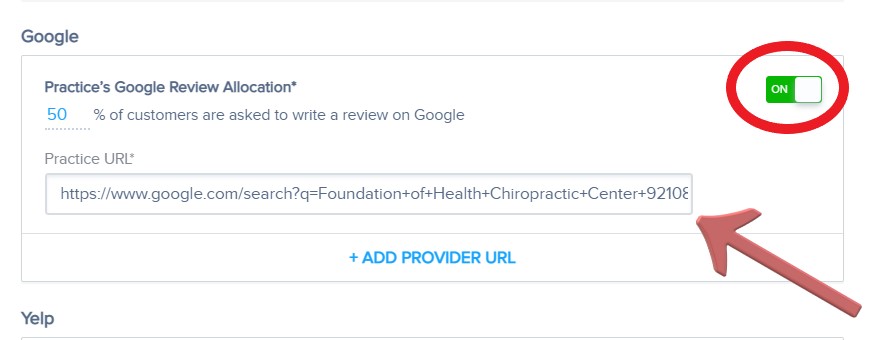
Note: You can switch the toggle to On or Off for each review site. Review sites that do not have a URL will be disabled (OFF). Enter the URL to active the review site.
- Insert the URL in the appropriate text box. This will switch the toggle to “ON”
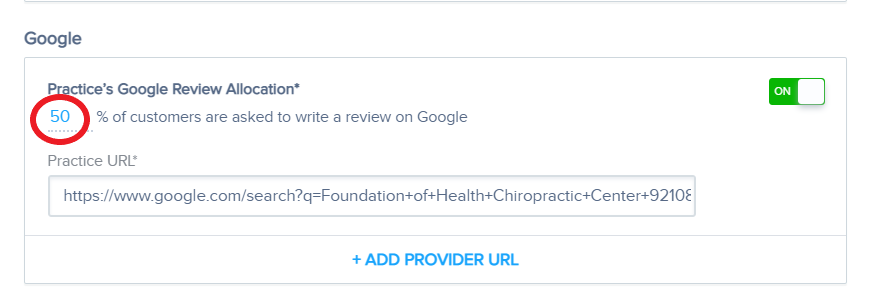
Note: You will receive an error message if you have allocated over 100%. Resolve this by scrolling down and clicking Split the Rest or manually adjusting the percentages.
- “Type the percentage in the field above the URL” See the IR Strategy & Best Practices sections of this article for additional guidance.
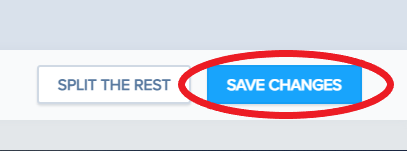
- Click “Save Changes” at the bottom right of the screen.
+Communication Preferences Intelligent Reviews Process
Intelligent Reviews seamlessly navigates your clients to a single review destination per communication proportionately based on the percentage of distribution designated in Intelligent Reviews Settings.
In this section, you are able to:
- Adjust your delivery time for review requests for both text messaging and emailing
Before adjusting the distribution percentages, it’s important to review exactly what features you configure
+Intelligent Reviews Settings
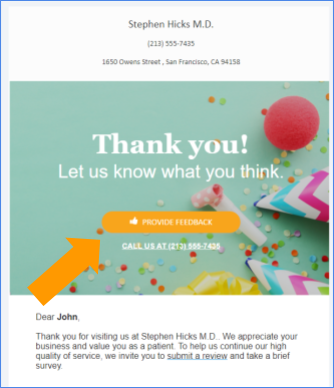
Intelligent Reviews Settings influence 3 features in the Portal:
Note: To View Simply Press “Quick View” Under The Communication Options i.e Text & Email
1. “Provide Feedback” Buttons
Examples: Follow Up (Thank You) Reminders & Campaigns
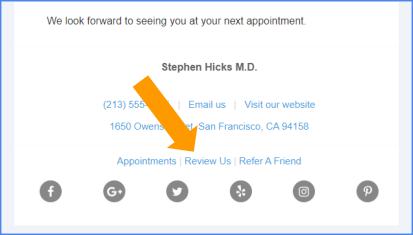
2. “Review Us” link at the bottom of every browser-based communication.
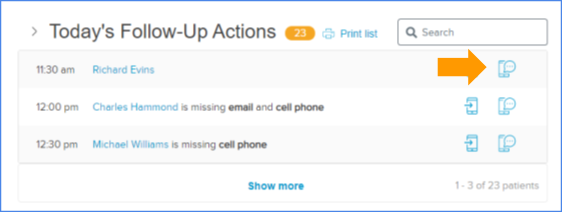
3. “Text Review” Request.
When your clients receive a review request from any one of the above features, once they click or select to leave a review (i.e. click the “Provide Feedback” button), they are navigated to a review site.
+How To Configure Communication Preferences
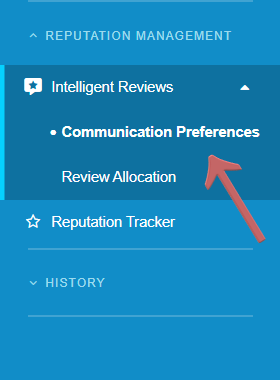
Step 1: Make sure you are in the “ Communication Preferences”
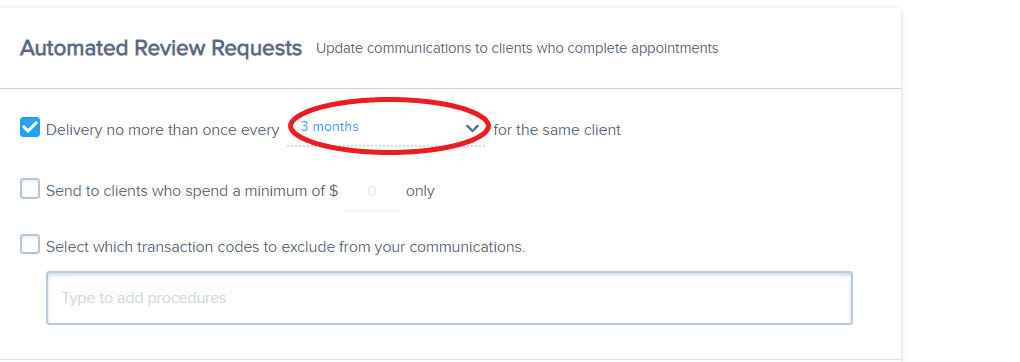
Step 2: Select the Daily/Monthly amount of review request you desire to send out to the same patient.
Note: If you would like to set a minimum amount spent for appointment and/or transaction codes to exclude you can.
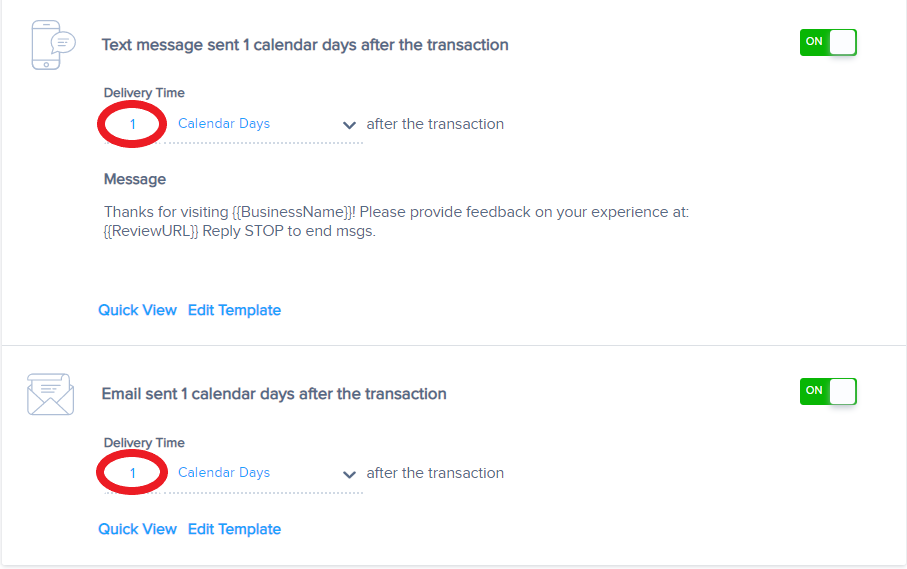
Step 3: Select “Delivery Time” for both Text Message and Email
Note: This will be when the text message for the review request will be sent. You are also able to edit the text within the messages, be sure to keep it under the character limit to avoid multiple messages being sent out.
+Get to Know Your Reputation
Before jumping into configuring your Intelligent Reviews Settings, let’s review a couple points from our Online Reputation experts that will help you get to know your Online Reputation a bit better.
To get to you know your reputation & set an appropriate course of action, do the following:
- Observe your reputation.
-
-
- Get to know your reputation.
- Search for your business on Google, and take a look at how you are represented in Google results.
- What directories are you listed on ? Which are missing ?
- How many reviews do each have? Are any sites very low?
- What does your star-rating look like? Are there any sites that are 3-stars or lower?
- Be sure to look at your Google My Business, Yelp, Facebook, and if in medical–WebMD, Vitals, and Healthgrades listings.
- Search for your business on Google, and take a look at how you are represented in Google results.
- Get to know your reputation.
-
- Prioritize & define a course of action based on your needs.
-
-
- Order of focus/needs:
- Collect reviews on sites that have 0 reviews.
- Get any site with less than 3 stars to a minimum of 3.
- Get any site with less than 4 stars to a minimum of 4.
- How old is your most recent review?
- Recency matters slightly more than total number. Try to have the most recent review be less than 30 days old.
- Based on your findings above, plan the percentages that you will allocate in Intelligent Reviews Settings.
- Order of focus/needs:
-
- Aim to create consistency.
-
-
- Focus on having a consistent and even spread with a minimum of 4 stars and recent reviews (most recent, within a month).
- Consistency across all sites is more important than having a bulk of reviews on one site.
- Unless you need to target a 0 review site, your IR distribution should be relatively even and reflect an effort to create consistency across all listings.
- Your clients search 2-3 of your review listings prior to scheduling an appointment with your office, another reason to take a strategic approach with Intelligent Reviews.
- Focus on having a consistent and even spread with a minimum of 4 stars and recent reviews (most recent, within a month).
-
- Engage with your reviewers.
-
- Always reply to your reviews.
- It is important to show that you are engaged with your clients and address issues when negative reviews do occur.
- Reply to both positive and negative reviews, whenever possible.
- Keep your replies friendly, non-confrontational, and non-specific.
- If you are in a medical field, be sure not to violate HIPAA by acknowledging protected information.
- Keep your replies friendly, non-confrontational, and non-specific.
- Always reply to your reviews.
+Intelligent Reviews Strategy
It’s important to have a strategy when approaching your Online Reputation. On average clients search 2-3 review listings prior to requesting an appointment with an office. For that reason it’s necessary to focus your strategy on getting a consistent number of recent reviews across all of your listings.
In the FAQs below, you will find typical review site issues & an Intelligent Reviews solution.
- Low levels of reviews on all sites.
Evenly distribute IR percentages across all listing sites.
- High/moderate-level of negative reviews across all sites
Evenly distribute IR percentages across all listings sites. You’re doing great!
- High-level of positive reviews on one site & very few +/- reviews on others.
Decrease IR distribution of the site with the highest number of reviews, and evenly distribute the remaining percentage across other sites.
- High-level of positive reviews on one site & high-level of negative reviews across multiple other sites.
Decrease IR distribution of the site with the highest number of reviews, and evenly distribute the remaining percentage across other sites.
- High-level of negative reviews on one site & generally good reviews across other sites.
Increase IR distribution slightly (15-20%) to filter more reviews to the site with elevated levels of negative reviews, and evenly distribute the remaining percentage across other sites.
+Best Practices
Use these best practices in addition to the chart above to get the most from Intelligent Reviews.
- Never filter 100% of your review distribution to any one site.
- Maintain 3 to 4 active listing sites in Intelligent Reviews at all times. Ensure that each site has a minimum of 10% distribution.
- Avoid making changes to Intelligent Reviews too frequently.
Note: Unless your client base is very proactive at leaving reviews (i.e. you receive many reviews each week), it’s best to make changes gradually. We recommend checking your settings after a month’s time or even on a quarterly basis in response to your progress.
- Always respond to your reviews, both positive & negative.
Note: Responding to positive reviews let’s your clients know you appreciate their input, and responding to negative reviews let’s your audience know you care about your clients’ satisfaction.
- Don’t allocate any more than 30% of your review to Yelp.
Note: Based on our experience, sending too many review requests to Yelp puts your reviews at-risk of being “Not Recommended” by Yelp. Read more information on “Why would a review not be recommended?” in Yelp’s Support Center.
+Find a Listing URL
In order to configure IR Settings properly, you must first collect the correct URL for the review/listing site to which you’d like to navigate your clients. Follow these instructions for collecting a review URL from Yelp, and Facebook.
+Yelp
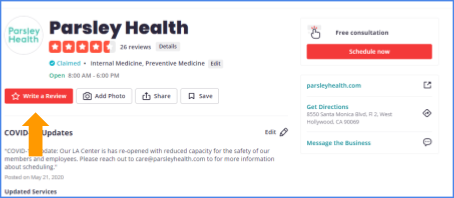
- Find your business’s Yelp listing.
- Click “Write a Review”.
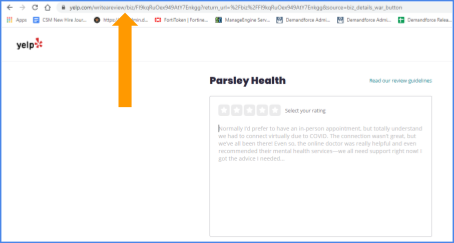
- Copy the URL from your browser’s address bar while on the “Write a Review” page.
- Insert the URL when prompted in “Configure Intelligent Reviews” instructions of this article, and configure the appropriate percentage.
First, make sure that reviews are permitted on your Facebook page using the instructions below.
Review Settings
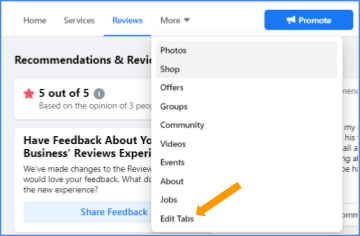
- Navigate to your business’s Facebook page (make sure you are signed in with the appropriate account).
- Click the “More dropdown menu”
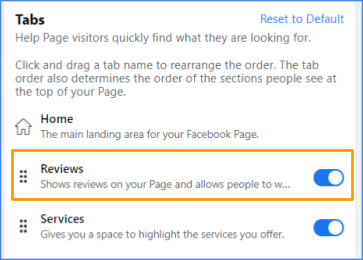
- Click “Edit Tabs” from the options listed.
- Verify that Reviews are toggled ON.
+Review URL
- Find your business’s Facebook page.
Note: You cannot be logged in to the account that owns the business page when attempting these steps.
- Click the “Reviews heading” to view all reviews.
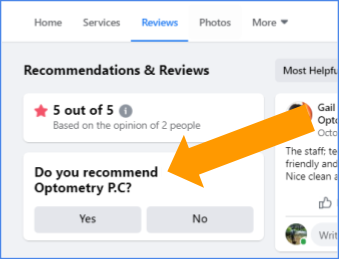
- Click “Yes” under “Do you recommend this business?”
Note: You can only view this page/option if you are logged in to a personal Facebook account that is not associated with the business’s page/listing.
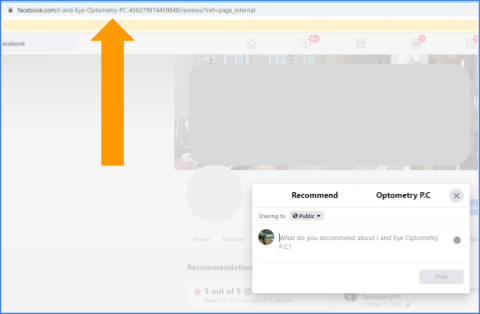
- Copy the URL located in the browser’s address bar.
- Insert the URL when prompted in the “Configure Intelligent Reviews” instructions of this article.
+Frequently Asked Questions
- Can I specify which customers receive which review sites?
No, but you are able to adjust the percentage of customers that receive links to review on specific sites.
- Can I add my own review site if it is not listed?
Not at this time.
- Where do these review links appear?
The review links you add on Intelligent Reviews will be used in any Review Us buttons, Thank You emails, and text review requests. You can also add these custom tags to newsletters and campaigns you send to your customers.
- How does the Split the Rest function work?
The Split the Rest function splits all of your percentages evenly among the review sites you have turned on, but will not override the edits you’ve manually made since your last save.